How to Record Trading Bot Demos with OBS Studio (2026 Setup Guide for SpotBot & Crypto Overlays)
Learn about How to Record Trading Bot Demos with OBS Studio (2026 Setup Guide for SpotBot & Crypto Overlays). Practical guide with tips and FAQ.

0 dropped frames at 60 FPS is the target for trading bot demos. This guide shows how to configure OBS Studio to record SpotBot-style interactions with clean visuals, real-time price overlays, and minimal system load. You will learn the exact settings, overlay methods, and performance optimizations used to produce YouTube- and Twitch-ready recordings without lag.
In This Guide
- Step 1: Configure OBS Video for Sharp Output
- Step 2: Optimize Output Settings for Recording Stability
- Step 3: Capture Trading Bot Interface Safely
- Step 4: Add Real-Time Crypto Price Overlays
- Step 5: Build a Multi-Scene Layout for Clarity
- Step 6: Optimize Performance to Eliminate Lag
- Tips and Best Practices
- FAQ
Step-by-Step Guide
Configure OBS Video for Sharp Output
Set resolution correctly first. OBS settings show mismatched scaling is the primary cause of blurry terminal text.
Base (Canvas): Match monitor (1920×1080 or 2560×1440)
FPS: 60 (use 30 only if hardware-limited)
Optimize Output Settings for Recording Stability
Use hardware encoding to eliminate CPU bottlenecks. NVENC/AMF offloads nearly all encoding work to the GPU.
Bitrate: 8,000–10,000 Kbps (YouTube), 6,000 Kbps (Twitch)
Result: Stable recording with near-zero frame drops during bot execution.
Capture Trading Bot Interface Safely
Window Capture is the standard. It isolates your bot and prevents accidental exposure of sensitive data.
Avoid Display Capture unless required — it increases GPU load and security risk.
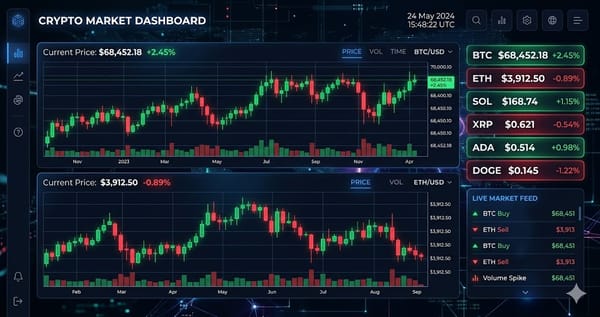
Add Real-Time Crypto Price Overlays
Live overlays improve viewer understanding of bot decisions. Four proven methods:
URL: https://imaarov.github.io/crypto-chart-obs-plugin/?coin=bitcoin&theme=dark&range=day&style=capsule
Pros: zero setup, no API keys, lightweight
Build a Multi-Scene Layout for Clarity
Three scenes outperform single layouts for demo clarity.
Add two Display Capture sources side-by-side
Result: Cleaner presentation and easier storytelling.
Optimize Performance to Eliminate Lag
Performance determines recording quality. Poor optimization causes frame drops even with good settings.
Match Browser Source resolution to content (avoid oversized frames)
Ensure write speeds >50 MB/s for long sessions
Tips and Best Practices
- Always test with small amounts before committing significant funds.
- Bookmark the official websites of tools mentioned in this guide to avoid phishing.
- Keep detailed records of your transactions for tax reporting purposes.
Ready to start trading?
Trade on Bitget Try CoinTech2uAffiliate links — we may earn a commission at no extra cost to you.
Frequently Asked Questions
Why am I getting frame drops during recording?
GPU or CPU overload. Check usage — keep GPU <80% and CPU <70%.
What is the best bitrate for YouTube uploads?
8,000–10,000 Kbps for 1080p60 gives the best clarity-to-size ratio.
Can OBS interact with my trading bot?
Yes. Using obs-websocket, your bot can trigger scene changes based on trade events.
Related Articles
- Tool What It Does Cost
- Use the hook as the title (e.g., "Bitcoin just hit $70k. Here’s why it’s going higher.")
- The AI Trader Diaries: How to Create a Viral “Day in the Life” DeFi Video for 2026